
Adding face detection so that the ER1 robot can respond when it sees someone’s face was a tall order. Part of my reasoning for choosing Processing as an interface for controlling the ER1 was because of the many image processing libraries and functions it provides. One of the most powerful is Open CV, the open source computer vision library originally created by Intel and now maintained by Willow Garage. By installing Open CV to work with Processing and by getting the webcam that came with the ER1 to be functional I was able to provide the robot with the rudimentary ability to detect and react to a person’s face in it’s field of view.
First the webcam needed to have its drivers installed. The drivers for the ER1 webcam appear to only have versions for Windows XP, 2000, ME, and 98 (I told you this thing was old). The webcam itself is a IREZ Kritter which now appears to be managed by GlobalMed a telemedicine company. When you connect the camera’s USB to the computer and windows asks for the location of the drivers, navigate to C:\Program Files\ER1 CD\CameraXP\
Once the camera’s drivers are installed upon opening the ER1 and choosing Setting -> Camera and clicking the checkbox that says “Enable Camera Usage” the camera’s video should be visible in the ER1 interface. When connecting the camera to processing make sure the ER1 check-box is NOT selected or Processing will give an error that the hardware is already in use.
Now Open CV needs to be installed. Follow the directions given on the Processing libraries webpage. The version of processing to be installed is Intel(R) Open Source Computer Vision Library 1.0. I had to install, uninstall and reinstall Open CV a couple times before I got it to work, hopefully it’s not so hard for you (if you ever have a reason to attempt this).
Lastly, in order to view any video with Processing, whether from a webcam or not, currently a very old plug-in called WinVIG 1.0.1 is required. Once all this stuff is installed and you’ve moved the unzipped example Open CV sketches folder provided with the library into your Processing->libraries folder you should be all set. You can hope to get something like this running in no time.
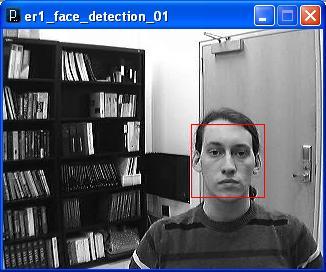
Example Face Detection Example from Processing using ER1 Webcam
 Spicer Robot Boy