Decision Tree Recursion Begins

So today the decision tree took its first gasping and labored breath and lived! What I mean, is that today I finished all the basic guts to make the implementation of my algorithm recursive. (If you don’t know what recursion try searching google for recursion). Recursion is the handy and sometime mind-bending ability of a computer program function, method or object to call/invoke itself from within itself! This ability is very useful because often times an operation that needs to be performed on one block of data is the same as that which is necessary to be performed on each sub-block of data. Therefore the function keeps calling itself until it gets down to the smallest sub-block of code it can process, then after it finishes the next block up the chain uses its results and so on, until the whole thing is wrapped back up at the top. Inherently decision trees (and just about any sort of software tree structure, and even some real trees) can be recursive, because their branches are basically just smaller trees themselves. The decision tree algorithm makes smaller decision trees using recursion until it finds a node with 0 entropy  (which means the outcome is totally determined at that node) called a leaf. In such a way a single object, Decision Tree, can build itself from the leaf nodes back up to the trunk or root node. So far my tree has no fancy output or graphical display and is not commented or ready for public viewing, but as I clean it up and get it interacting with the Arduino I’ll post the polished source. For now here’s a teaser of the command line debug feedback showing the tree at work.
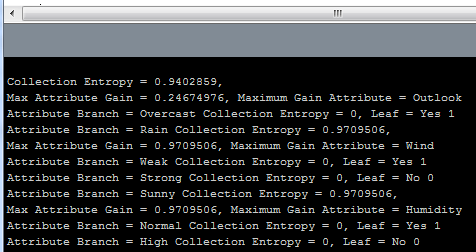
Decision Tree example Command Line Output
Processing Command Line Output Showing Entropy, Information Gain and Leaf Nodes of Decision Tree
More Decision Trees in Processing

This is going to have to be a short post because I’m simply out of time for the day.

I’ve been doing some reading about information theory as the basis for using entropy and information gain as measures to choose the branches and leaves of a decision tree. I’ve also been reading other people’s implementations of decision tree algorithms, so I won’t be totally reinventing the wheel with this project. First off, a very good general explanation of decision trees can be found at Rudjer Boskovic Institute’s Data Mining Server tutorial titled Decision Trees. In the tutorial is J. Ross Quinlan’s classic decision tree algorithm ID3.

function ID3
Input:   (R: a set of non-target attributes,
          C: the target attribute,
          S: a training set) returns a decision tree;
begin    If S is empty, return a single node with
      value Failure;
   If S consists of records all with the same
      value for the target attribute,
      return a single leaf node with that value;
   If R is empty, then return a single node
      with the value of the most frequent of the
      values of the target attribute that are
      found in records of S; [in that case
      there may be be errors, examples
      that will be improperly classified];
   Let A be the attribute with largest
      Gain(A,S) among attributes in R;
   Let {aj| j=1,2, .., m} be the values of
      attribute A;
   Let {Sj| j=1,2, .., m} be the subsets of
      S consisting respectively of records
      with value aj for A;
   Return a tree with root labeled A and arcs
      labeled a1, a2, .., am going respectively
      to the trees (ID3(R-{A}, C, S1), ID3(R-{A}, C, S2),
      .....,ID3(R-{A}, C, Sm);
   Recursively apply ID3 to subsets {Sj| j=1,2, .., m}
      until they are empty
end

I’m doing my best to implement something similar to this in Processing, we’ll see how it goes. So far I am able to calculate the entropy and gain of a collection and all it’s attributes, but have not yet written the code to branch the attributes and outputs in order to recursively traverse the tree. If this doesn’t prove too difficult I’d also like to make graphical output to demonstrate the structure of the tree and possibly post-prune the tree as recommended by experts to remove over-fitted branches that reduce the decision tree’s ability to generalize to data outside the training set.

Speech Recognition and Decision Trees in Processing

So, I’ve been hard at work, sometimes so much so that I have neglected to update and record my progress.

Today I spent some time trying to discover the capabilities of the ER1’s speech recognition system. This proved to be quite a bit more difficult than I originally thought. First of all, the speech recognition system which is built into the Robot Control Center (RCC) requires the use of a microphone (obviously) which I did not have on hand. Once I located an adequate microphone and had it configured and adjusted to function with the Windows XP ER1 laptop I realized that the RCC speech recognition function is an extension of the operating system’s speech recognition engine (which was not installed on the ER1 laptop). Thankfully by locating an ancient Microsoft Office XP install disk I was able to install and setup the speech recognition engine and do some of the training examples to improve the recognition. When the system was finally running and functional in the OS, I was able to run the RCC speech recognition behavior with good results. I had the ER1 listen for me to say the phrase “Good Morning” at which point it responded by saying “I just heard you say ‘Good Morning'”. It was pretty satisfying to have the robot hear my voice and respond, I must say. However, there seems to be no functionality (at least no documented functionality) to allow the speech recognition system in the RCC to be controlled or interface through the telnet interface which I am currently using to autonomously control the ER1. This speech recognition problem may be reviewed in the future.

Now to the exciting stuff. Working on the machine learning algorithms. I spent the last couple of days working to write some general decision tree building functions in Matlab, with some success, but lots of frustration. In general a decision tree is a type of regression that uses statistical weights for different inputs to choose a final output class. Troubleshooting guides are a basic type of decision tree that attempt to locate the source of a technical problem. In my system I am attempting to take a labeled collection of inputs and outputs and build a decision tree in Processing that can be implemented on an Arduino. The heavy lifting of calculating all the statistical weights and information gains  make sense to be implemented in Processing because a PC is much more powerful than an Arduino. Then the Arduino (which can be part of a robot, electronic art installation or anything else someone may create) can benefit from the use of the decision tree to make it smarter (I hope).

The design so far is as follows: Input (arbitrary number of attributes (like temperature or humidity) which can each take on some unique arbitrary number of discrete levels (like hot, cool, cold) with all levels represented by integers 1 to n, where n is the number of levels that attribute has. Output (arbitrary number of output states/classes (like yes/no or left/right/center) with all output states also represented by integers 1 to n, where n is the number of output classifications. The data used to train/build the tree must be some collection of ordered sets of attributes and output classes, where a greater number of training data has the potential to build a more accurate tree. A couple of relatively simple equations are used to calculate the values needed to build the tree.

The entropy represents how much variability/randomness a particular attribute contains. An entropy value of 1 means that the attribute has no effect on the output. An entropy value of 0 is deterministic, and leads to a single decision (output classification) and thereby determines when a branch of the tree will end in a terminal leaf. The gain value determines the information gain a given attribute provides based on the current branch it is on. The gain values are used to determine the branch nodes and hierarchy of the tree. The “i” above represents the possible output states and the “v” represents the possible values an attribute can take on.

So far in Processing I have an architecture for the tree and functions to calculate entropy and gain, but the difficult task of making the entire thing recursive and adaptable to arbitrary data sets, and producing some output that is usable by the Arduino is still to be done.

Adding Machine Learning to the Arduino

My eventual goal is to create a few machine object classes for use with either the Arduino or Processing or both. In general, machine learning involves processor intensive statistical calculations on very large data sets to be effective. Obviously this does not lend itself well for use on a small 8-bit microcontroller platform like Arduino. However, I believe it may be possible to do some very neat things with an Arduino based system if most of the “training” phase of a given algorithm is performed on a PC with Processing, while the implementation/reinforcement learning phase is conducted on the Arduino. If input data is limited to analog/digital sensor readings, a very simple open-source robot with the ability to learn may be possible.

I plan to do my best to implement some form of decision tree (supervised learning), Q-learning (reinforcement learning) and K-nearest neighbors (unsupervised learning) algorithms, starting with the decision tree.

To begin with I plan to design/test my algorithms with Matlab to speed development, then translate the code into either Processing or Arduino as the case may warrant.

First Wireless Test Successful!

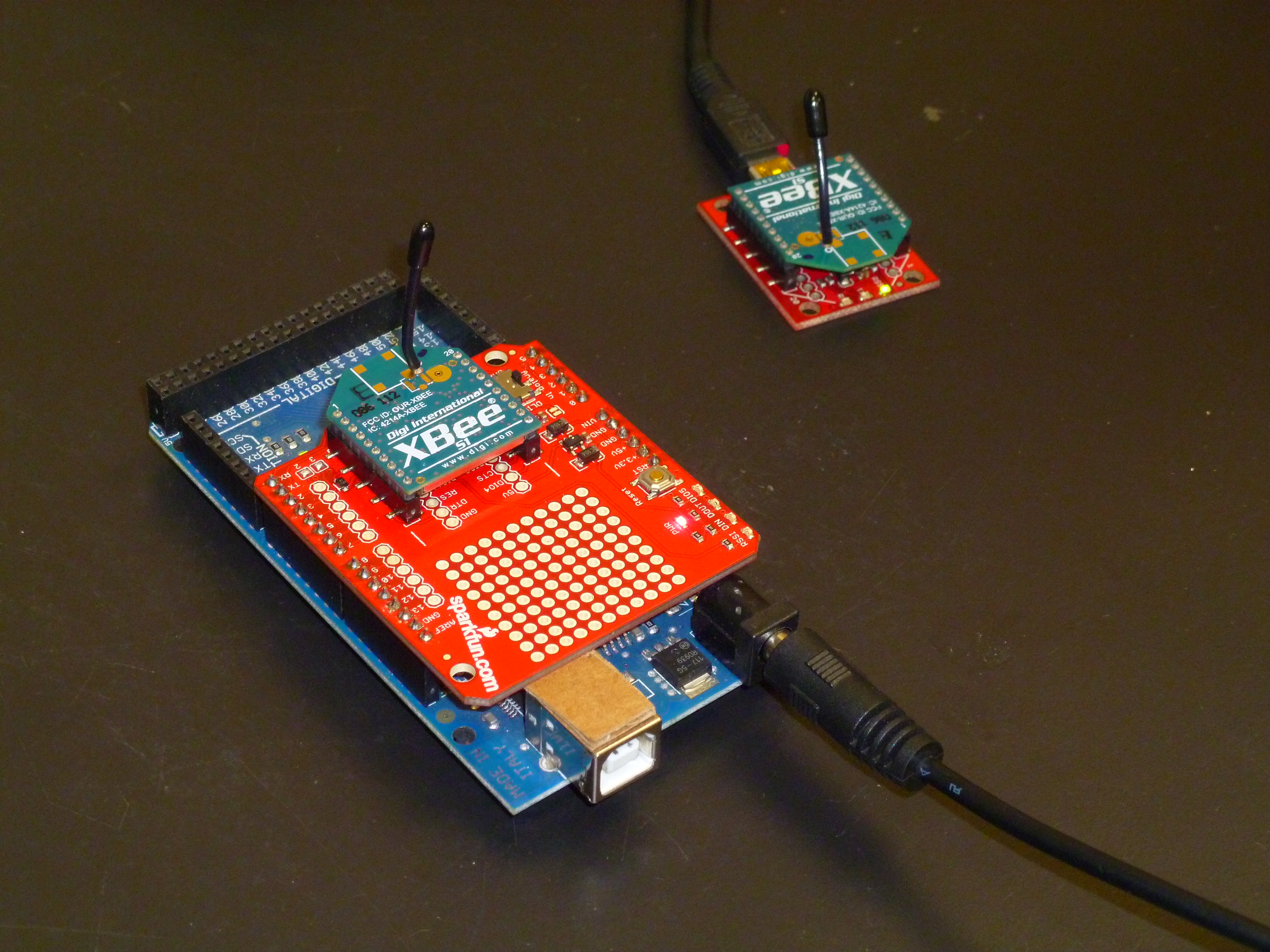
By adding an Xbee Module with the use of my Xbee shield, I was able to make the Arduino wireless. A second Xbee Module was attached to the ER1 through a Xbee explorer USB. Once the connection was successfully made, as if by magic the same program I wrote yesterday, which randomly moved the robot based on characters received over the serial port, ran just as it did yesterday. The system is now wireless!

Xbee Shield on Arduino and Xbee explorer attached to ER1

Adding Xbee Wireless Connection to the ER1

With the eventual goal of placing biometric sensors on a subject and then wirelessly transmitting data based on the sensors to the ER1 robot, a wireless communication method is required. A very simple to use wireless method for short/mid range wireless communication is the Zigbee protocol. Because the Zigbee standard as defined is relatively difficult to work with, a very common approach for hobbyists is to use Digi’s Xbee wireless modules to wrap the Zigbee hardware protocol into an easy to use and interface serial protocol. With an Xbee module attached through a USB virtual COM port FTDI chip data can be transmitted wirelessly with no more effort than using a standard serial port with wired cable.

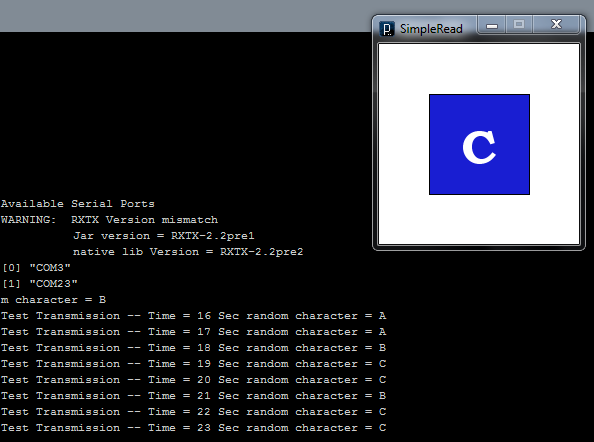
Processing provides a serial library which allows programs written in Processing (such as the telnet program which is being used to control the ER1) to access data from serially connected external machines such as another computer, an Arduino or an Xbee module. In order to initially test the Processing serial library an Arduino was connected to the ER1 laptop and was configured to send serial data including random characters “A”, “B” or “C” over the virtual COM port at one second intervals. Processing would read the serial string and display it in the terminal, update the sketch window to show the current random character and would command the ER1 through the telnet connection to either move forward, backward or turn counterclockwise based on the latest random character transmitted. The Arduino and Processing Code used for these basic tests are provided below.

Arduino Code

long time;
char randCharacter;

void setup() {
  Serial.begin(9600);
  Serial.println("Arduino Serial to Processing Test");
  time = millis();
  randomSeed(analogRead(0));
}

void loop() {
  if (millis() - time > 1000) {
    time = millis();
    Serial.print("Test Transmission -- ");
    Serial.print("Time = ");
    Serial.print(millis()/1000);
    Serial.print(" Sec");
    Serial.print(" random character = ");

    randCharacter = random(65, 68);
    Serial.println(randCharacter);
  }
}

Processing Code

import processing.serial.*;
import processing.net.*;

Client myClient;

Serial myPort; // Create object from Serial class
int val;       // Data received from the serial port
PFont fontA;

void setup() {
  size(200, 200);

  myClient = new Client(this, "localhost", 9000);
  myClient.write("play phrase \"Hello World!\"\n");

  println("Available Serial Ports");
  println(Serial.list());

  String portName = Serial.list()[2];
  myPort = new Serial(this, portName, 9600);

  background(255);
  fontA = loadFont("BookmanOldStyle-Bold-48.vlw");
  textAlign(CENTER);

  // Set the font and its size (in units of pixels)
  textFont(fontA, 48);
}

void draw() {
  while (myPort.available() > 0) {
    char inByte = myPort.readChar();
    print(inByte);
    if (inByte == 'A') {
      fill(210, 25, 30);
      rect(50, 50, 100, 100);
      fill(255);
      text("A", 100, 120);
      myClient.write("move 6 inches\n");
    }
    else if(inByte == 'B') {
      fill(30, 210, 25);
      rect(50, 50, 100, 100);
      fill(255);
      text("B", 100, 120);
      myClient.write("move -6 inches\n");
    }
    else if(inByte == 'C') {
      fill(25, 30, 210);
      rect(50, 50, 100, 100);
      fill(255);
      text("C", 100, 120);
      myClient.write("move 25 degrees\n");
    }
  }
}

Output

Processing Terminal and Window Out

Adding Face Detection with Processing

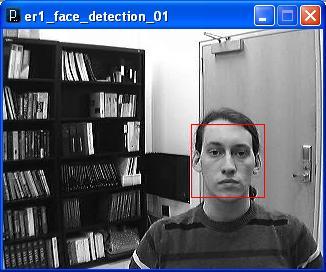
Adding face detection so that the ER1 robot can respond when it sees someone’s face was a tall order. Part of my reasoning for choosing Processing as an interface for controlling the ER1 was because of the many image processing libraries and functions it provides. One of the most powerful is Open CV, the open source computer vision library originally created by Intel and now maintained by Willow Garage. By installing Open CV to work with Processing and by getting the webcam that came with the ER1 to be functional I was able to provide the robot with the rudimentary ability to detect and react to a person’s face in it’s field of view.

First the webcam needed to have its drivers installed. The drivers for the ER1 webcam appear to only have versions for Windows XP, 2000, ME, and 98 (I told you this thing was old). The webcam itself is a IREZ Kritter which now appears to be managed by GlobalMed a telemedicine company. When you connect the camera’s USB to the computer and windows asks for the location of the drivers, navigate to C:\Program Files\ER1 CD\CameraXP\

Once the camera’s drivers are installed upon opening the ER1 and choosing Setting -> Camera and clicking the checkbox that says “Enable Camera Usage” the camera’s video should be visible in the ER1 interface. When connecting the camera to processing make sure the ER1 check-box is NOT selected or Processing will give an error that the hardware is already in use.

Now Open CV needs to be installed. Follow the directions given on the Processing libraries webpage. The version of processing to be installed is Intel(R) Open Source Computer Vision Library 1.0. I had to install, uninstall and reinstall Open CV a couple times before I got it to work, hopefully it’s not so hard for you (if you ever have a reason to attempt this).

Lastly, in order to view any video with Processing, whether from a webcam or not, currently a very old plug-in called WinVIG 1.0.1 is required. Once all this stuff is installed and you’ve moved the unzipped example Open CV sketches folder provided with the library into your Processing->libraries folder you should be all set. You can hope to get something like this running in no time.

Face Detection Example

Example Face Detection Example from Processing using ER1 Webcam

Reviewing Last Semester

So here’s the deal. Last year I took a class named “Machine Learning”, in which we learned some of the basic uses and algorithms that comprise machine learning. One of the projects we attempted was to use a couple of very outdated Evolution Robotics ER1 robots to implement a machine learning task. The problem was the robot hardware and software were both so out of use and in bad repair that they were very difficult to use for the task at all. After the class concluded I came back to see what could be done to make the robots somewhat functional. What I decided to do was use Processing and it’s free extension libraries to connect with and control the ER1 through the provided telnet API and the ER1 Robot Control Center (RCC). I successfully started that project last year, and attempt now to describe what was done and how it works.

First: The RCC and Processing must be installed on the laptop that is gong to control the robot. RCC should come on a CD or download with the ER1 and Processing is freely available from their website.

Second: The RCC must be configured to all API control. This is done by clicking the “Settings” button in the upper left corner, followed by opening the “Remote Control” tab. Then the radio button “Allow API control of this instance” must be selected. The Port defaults to 9000, and leaving is as such worked just fine. Then clicking “OK” should make the RCC ready for API control. If you did this step correctly, upon opening the RCC the message box should say something like “Listening for incoming API requests on port 9000”. In order to control the ER1 through Processing the RCC must be left open, but it can be minimized.

Third: Open Processing and run a sketch that uses the network library to connect to the RCC telnet API. Here is one such example program that I use to verify that the ER1 is connected and functional

import processing.net.*;

Client myClient;

void setup() {
  myClient = new Client(this, "localhost", 9000);
  myClient.write("play phrase \"Hello World!\"\n");
}

void draw() {
  delay(3000)
  myClient.write("play phrase \"I am an E R 1 Robot, who is Here to Help!\"\n");
}

At this point just about anything that can be done in Processing can now be translated over to the ER1 itself. Other telnet API commands can be used aside from “play phrase”. The API is documented in the RCC and this documentation can be found by opening the RCC, clicking on the “Help” button in the upper left corner, then by opening the section titled “ER1 Command Line Interface”.

If instead of using processing you wish to directly enter the command line control commands, open a windows command line, then type “telnet localhost 9000” without the quotation marks and press enter. If a blank black command line opens then you can control the robot from the command line. Have fun!

hello_world

A traditional way for those of us who work with computers and robotics to test our systems is the pleasantly ubiquitous “hello world” program. This post is such a test program. Both as a way to gauge the abilities and features of the web interface I’m using to create it, and as a test of my own skills at writing and maintaining such a thing as a “blog”. Through this blog and other associated pages, I hope to exemplify some of my projects in robotics and electrical engineering, especially my masters independent research project. To those of you who have stumbled upon this first post be warned, I have not yet gained the ability to statistically predict future outcomes, and as such make no claims about the quality or extent of what is to follow. Enjoy.