Auto-generated Arduino Code: Day 1

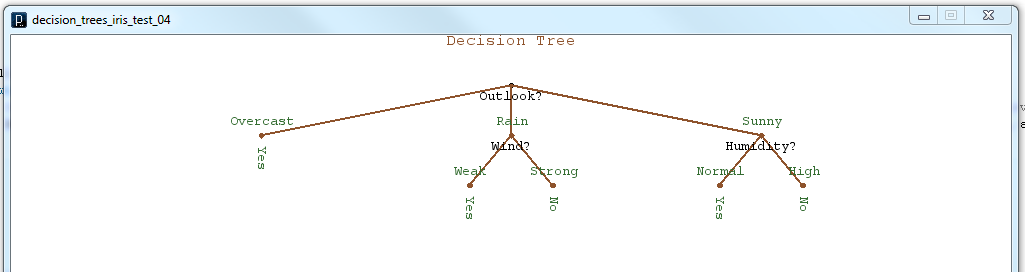
So the moment I’ve been working toward for the past few weeks has arrived. I’ve finally started the process of having my decision tree program in Processing output generated code that can be run on the Arduino platform. In this first day I’ve made a huge amount of progress, going from nothing to having all the necessary code generated to create a function which can be run on the Arduino. What I’ve done is allow the decision tree program in processing to create a .h header file with the name of the tree as the name of the generated function. The inputs to the function are integer variables whose names are the names of the attributes used to create the tree. The auto-generated code includes comments which tell the name of the function and the date and time it was generated. Once the .h file is generated, all I have to do is use the decision tree function with the Arduino is place the generated “tree_name”.h file in the Arduino libraries folder and then add #include <“tree_name”.h> to my Arduino sketch. From there on the decision tree function will simply take in integer inputs for the attributes and output the decision as an integer which is the output level. I’ll be working to clean up all my code and examples and to run some data sets through the system for verification and to determine percent accuracy. For now I’ll leave you with some of the auto-generated code and the decision tree diagram that goes with it.

/* tennis decision Tree file for Arduino	*/
/* Date: 13 Feb 2012                        */
/* Time: 18:22:33                           */

#ifndef tennis_H
#define tennis_H

#if defined(ARDUINO) && ARDUINO >= 100
#include "Arduino.h"
#else
#include "WProgram.h"
#endif

int tennis(int Outlook, int Temp, int Humidity, int Wind){
	if(Outlook == 0){
		return 1;
	}
	else if(Outlook == 1){
		if(Wind == 0){
			return 1;
		}
		else if(Wind == 1){
			return 0;
		}
	}
	else if(Outlook == 2){
		if(Humidity == 0){
			if(Temp == 0){
				return 1;
			}
			else if(Temp == 1){
				return 1;
			}
			else if(Temp == 2){
				if(Wind == 0){
					return 0;
				}
				else if(Wind == 1){
					return 1;
				}
			}
		}
		else if(Humidity == 1){
			return 0;
		}
	}
}

#endif

Tennis Decision Tree

Basic Graphics for Decision Trees

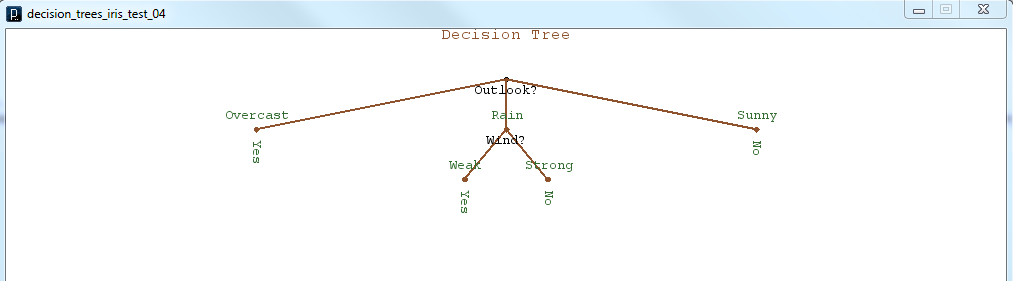
As I’ve continued to work towards making my decision tree program capable of auto-generating Arduino code, I’ve realized that it would be helpful to get a visual sense of what the decision tree structure looks like. By producing some graphical representation of the decision tree I thought I would get a better understanding of how I would generate the program control structure, and where in my program to generate the if/else branches. I have learned a couple of things, first that it is difficult for a recursive structure to keep track of where in the structure it currently is, and also that Processing is very adept at making simple graphical output. In summary, I was able to use the pushMatrix() and popMatrix() functions, which are part of Processing, to save my current coordinate system on a stack before each recursive branch. This would allow each branch to behave identically to the larger tree. Also I used a very clever, at least I think it’s clever, method of storing my current node location in terms of the level number, and the branch number. This allows the tree to make decisions about how to represent and space the branches on a given node given the depth and number of other nodes at that level. Here are a couple of teaser images of the graphical output.

decision tree graphic 2decision tree graphic 1Now that I have some basic (very basic) graphical output to represent the tree structure, I should be ready to begin the process of using the graphical tree structure to create actual Arduino code.

Loading Data into Processing

For the past couple of days I have been doing my best to use other data that has been collected and analyzed with commercial software, like Matlab, to verify if my decision tree program is working. One common data set that is often used is something called the Fisher’s Iris Data. This data set is useful because it has been analyzed with many different algorithms and methods over the years and also because it is the example set used in the Matlab Statistics Toolbox Classification Tutorial. I will go further into how I used this data set to test my decision tree in an upcoming post. One problem with using a data set like Fisher’s Iris Data is that there are over a hundred data points for each of several factors; these take a long time to type into an array, as is required by my basic decision tree program. In Matlab a simple command like “load fisheriris” is all that is needed to load the whole data set into a collection of arrays. I wanted to find a way to do something similar with my program that would allow data to be collected and manipulated in Excel or Matlab or a simple text editor and then loaded directly into the program. There are surely multiple ways to handle this problem but I’ve got a simple solution that uses a combination of the Processing function loadString() as well as a simple method to convert arrays of Strings to arrays of Integers as described on  Manikandan’s Weblog. Enjoy the example:


// Each Processing Sketch requires a setup() and draw() function, this is the setup()
void setup()
{
  // Basic Processing setup codes
  size(640, 360);           // Create window of size 640 by 360 pixels
  background(0);            // Make window background color black
  stroke(255);              // Make stroke (line) color white
  noLoop();                 // Don't repeat (loop) the draw() fucntion

  // Load a text file with separate values (just an integer number) on each line
  // into an array of Strings, which each value in its own String
  // 100.txt contains the number 1 to 100, each on its own line
  String[] dataString = loadStrings("100.txt");
  // Print how many lines the file contained
  println("there are " + dataString.length + " lines");
  for (int i=0; i < dataString.length; i++) {
    // Print each line or number String
    println(dataString[i]);
  }
  println();             // Add a blank line to the command line ouput

  // Use custom function convertStringArraytoIntArray to convert each
  //String in an array of Strings to an integer in an array of integers
  int[] dataIntArray = convertStringArraytoIntArray(dataString);
  // Print how many numbers are in the array
  println("there are " + dataIntArray.length + " numbers in array");
  for (int i=0; i < dataIntArray.length; i++) {
    // Print each number in the array
    println(dataIntArray[i]);
  }
  println();             // Add a blank line to the comand line output
}

// Each Processing Sketch requires a setup() and draw() function
// We're not using the draw function, so we leave it blank
void draw()
{
}

// Custom Function that takes an array of Strings
// and returns an array of integers
public int[] convertStringArraytoIntArray(String[] sarray) {
  // If the array of Strings is not empty or NULL then process it
  if (sarray != null) {
    int intarray[] = new int[sarray.length];
    // Create int array with elements for each String in String array
    for (int i = 0; i < sarray.length; i++) {
      // For each String in String array, use parseInt to get integer
      intarray[i] = Integer.parseInt(sarray[i]);
    }
    return intarray;      // Return the interger array
  }
  return null;            // If the String array was null, return null
}

Decision Tree Recursion Begins

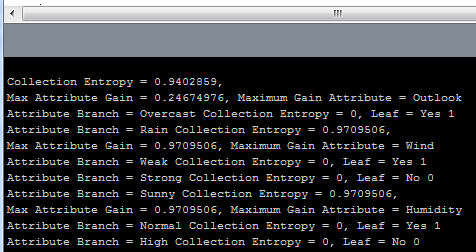
So today the decision tree took its first gasping and labored breath and lived! What I mean, is that today I finished all the basic guts to make the implementation of my algorithm recursive. (If you don’t know what recursion try searching google for recursion). Recursion is the handy and sometime mind-bending ability of a computer program function, method or object to call/invoke itself from within itself! This ability is very useful because often times an operation that needs to be performed on one block of data is the same as that which is necessary to be performed on each sub-block of data. Therefore the function keeps calling itself until it gets down to the smallest sub-block of code it can process, then after it finishes the next block up the chain uses its results and so on, until the whole thing is wrapped back up at the top. Inherently decision trees (and just about any sort of software tree structure, and even some real trees) can be recursive, because their branches are basically just smaller trees themselves. The decision tree algorithm makes smaller decision trees using recursion until it finds a node with 0 entropy  (which means the outcome is totally determined at that node) called a leaf. In such a way a single object, Decision Tree, can build itself from the leaf nodes back up to the trunk or root node. So far my tree has no fancy output or graphical display and is not commented or ready for public viewing, but as I clean it up and get it interacting with the Arduino I’ll post the polished source. For now here’s a teaser of the command line debug feedback showing the tree at work.

Decision Tree example Command Line Output
Processing Command Line Output Showing Entropy, Information Gain and Leaf Nodes of Decision Tree

Adding Machine Learning to the Arduino

My eventual goal is to create a few machine object classes for use with either the Arduino or Processing or both. In general, machine learning involves processor intensive statistical calculations on very large data sets to be effective. Obviously this does not lend itself well for use on a small 8-bit microcontroller platform like Arduino. However, I believe it may be possible to do some very neat things with an Arduino based system if most of the “training” phase of a given algorithm is performed on a PC with Processing, while the implementation/reinforcement learning phase is conducted on the Arduino. If input data is limited to analog/digital sensor readings, a very simple open-source robot with the ability to learn may be possible.

I plan to do my best to implement some form of decision tree (supervised learning), Q-learning (reinforcement learning) and K-nearest neighbors (unsupervised learning) algorithms, starting with the decision tree.

To begin with I plan to design/test my algorithms with Matlab to speed development, then translate the code into either Processing or Arduino as the case may warrant.

Adding Face Detection with Processing

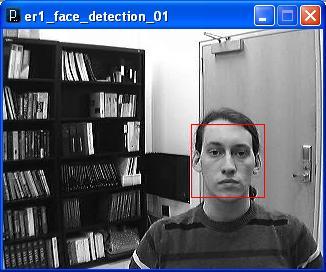
Adding face detection so that the ER1 robot can respond when it sees someone’s face was a tall order. Part of my reasoning for choosing Processing as an interface for controlling the ER1 was because of the many image processing libraries and functions it provides. One of the most powerful is Open CV, the open source computer vision library originally created by Intel and now maintained by Willow Garage. By installing Open CV to work with Processing and by getting the webcam that came with the ER1 to be functional I was able to provide the robot with the rudimentary ability to detect and react to a person’s face in it’s field of view.

First the webcam needed to have its drivers installed. The drivers for the ER1 webcam appear to only have versions for Windows XP, 2000, ME, and 98 (I told you this thing was old). The webcam itself is a IREZ Kritter which now appears to be managed by GlobalMed a telemedicine company. When you connect the camera’s USB to the computer and windows asks for the location of the drivers, navigate to C:\Program Files\ER1 CD\CameraXP\

Once the camera’s drivers are installed upon opening the ER1 and choosing Setting -> Camera and clicking the checkbox that says “Enable Camera Usage” the camera’s video should be visible in the ER1 interface. When connecting the camera to processing make sure the ER1 check-box is NOT selected or Processing will give an error that the hardware is already in use.

Now Open CV needs to be installed. Follow the directions given on the Processing libraries webpage. The version of processing to be installed is Intel(R) Open Source Computer Vision Library 1.0. I had to install, uninstall and reinstall Open CV a couple times before I got it to work, hopefully it’s not so hard for you (if you ever have a reason to attempt this).

Lastly, in order to view any video with Processing, whether from a webcam or not, currently a very old plug-in called WinVIG 1.0.1 is required. Once all this stuff is installed and you’ve moved the unzipped example Open CV sketches folder provided with the library into your Processing->libraries folder you should be all set. You can hope to get something like this running in no time.

Face Detection Example

Example Face Detection Example from Processing using ER1 Webcam

Reviewing Last Semester

So here’s the deal. Last year I took a class named “Machine Learning”, in which we learned some of the basic uses and algorithms that comprise machine learning. One of the projects we attempted was to use a couple of very outdated Evolution Robotics ER1 robots to implement a machine learning task. The problem was the robot hardware and software were both so out of use and in bad repair that they were very difficult to use for the task at all. After the class concluded I came back to see what could be done to make the robots somewhat functional. What I decided to do was use Processing and it’s free extension libraries to connect with and control the ER1 through the provided telnet API and the ER1 Robot Control Center (RCC). I successfully started that project last year, and attempt now to describe what was done and how it works.

First: The RCC and Processing must be installed on the laptop that is gong to control the robot. RCC should come on a CD or download with the ER1 and Processing is freely available from their website.

Second: The RCC must be configured to all API control. This is done by clicking the “Settings” button in the upper left corner, followed by opening the “Remote Control” tab. Then the radio button “Allow API control of this instance” must be selected. The Port defaults to 9000, and leaving is as such worked just fine. Then clicking “OK” should make the RCC ready for API control. If you did this step correctly, upon opening the RCC the message box should say something like “Listening for incoming API requests on port 9000”. In order to control the ER1 through Processing the RCC must be left open, but it can be minimized.

Third: Open Processing and run a sketch that uses the network library to connect to the RCC telnet API. Here is one such example program that I use to verify that the ER1 is connected and functional

import processing.net.*;

Client myClient;

void setup() {
  myClient = new Client(this, "localhost", 9000);
  myClient.write("play phrase \"Hello World!\"\n");
}

void draw() {
  delay(3000)
  myClient.write("play phrase \"I am an E R 1 Robot, who is Here to Help!\"\n");
}

At this point just about anything that can be done in Processing can now be translated over to the ER1 itself. Other telnet API commands can be used aside from “play phrase”. The API is documented in the RCC and this documentation can be found by opening the RCC, clicking on the “Help” button in the upper left corner, then by opening the section titled “ER1 Command Line Interface”.

If instead of using processing you wish to directly enter the command line control commands, open a windows command line, then type “telnet localhost 9000” without the quotation marks and press enter. If a blank black command line opens then you can control the robot from the command line. Have fun!